

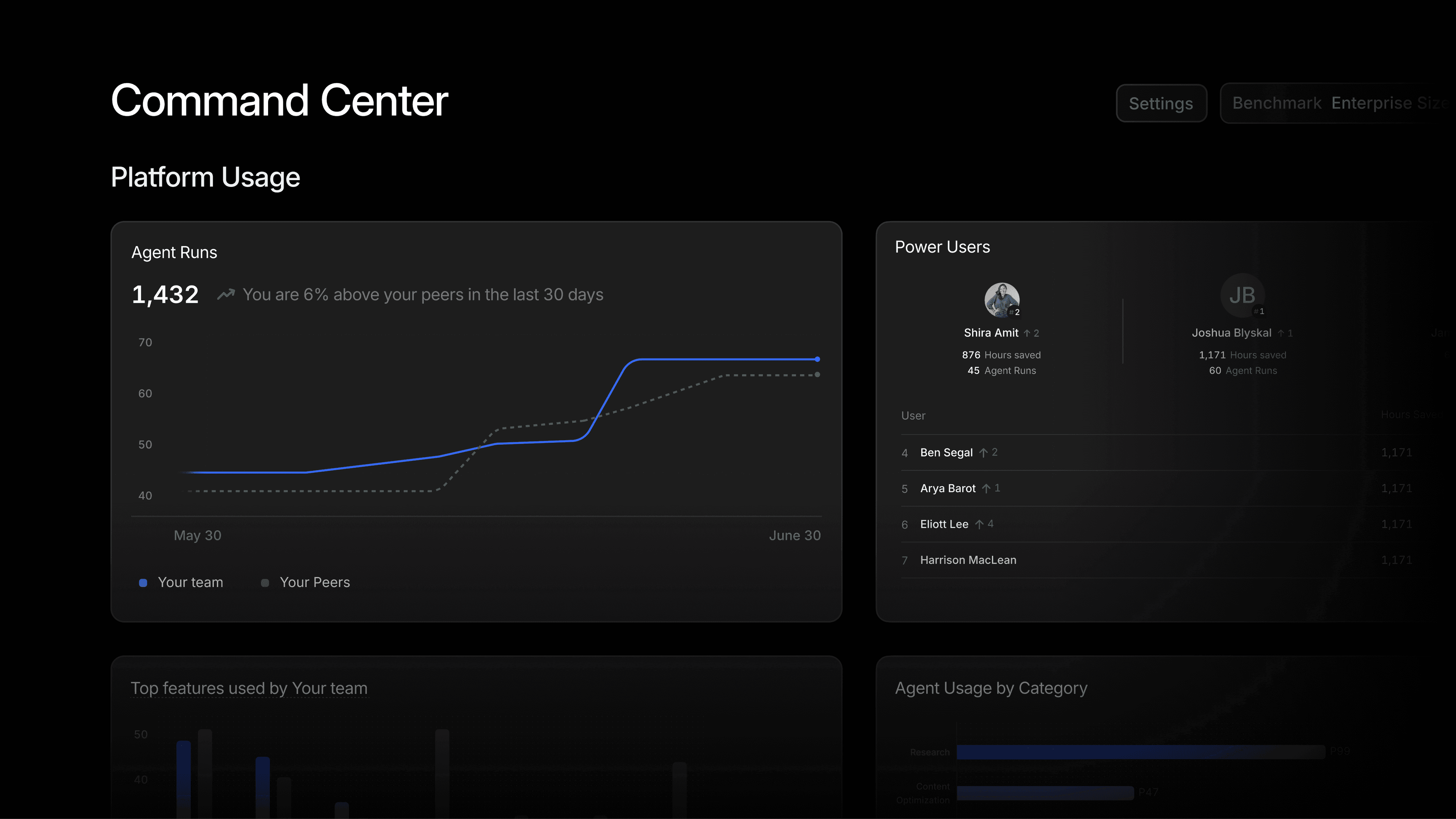
Getting AI into the marketing stack was the hard part a year ago. It isn't anymore. Most teams have the tools, the seats, and a handful of people doing genuinely new work with them.
What separates the organizations getting real return from the ones that plateau is what happens after deployment. They keep improving the program. They find where adoption lags, they understand what comparable companies are doing, and they move quickly on the capabilities they haven't picked up yet.
Doing that requires knowing how your team actually uses the platform, and that has been hard to see. Answering it meant stitching together activity across configurations, categories, brands, and users by hand. Command Center gives the people running those programs a single view built for exactly that work.
What's in Command Center
Overall performance
Four headline measures across your organization: Active Users, Agent Runs, Total Hours Saved, and Projects Tracked. View them cumulatively, or set a time frame to look at a specific reporting period.
Hours saved, with the math behind it
Total hours saved is an estimate, and it's an estimate you can inspect. Expand the metric and you get a breakdown by marketing category showing active Agents, Agent runs, average process time, and the resulting time saved. Profound ships with default process-time assumptions, and you can edit them per category so the number reflects how your team actually works rather than how we guessed it works.
Power users
A leaderboard ranking users by Agent runs, hours saved, and active days. View the full list or download it to share internally. It's the fastest way to find the people who have built working patterns worth copying, and the seats that haven't been picked up yet. Users who have left your organization stay visible if their historical activity ranks, labeled as Former Member.
Agent usage by category
Agent run volume overall and broken out by marketing category, so you can see not just whether Agents are being used but where. Categories include content creation, content optimization, outreach, and reporting.
Peer benchmarks
Every metric can be viewed on its own or against anonymized, aggregated peers filtered by enterprise size and industry. A usage number without a comparator is hard to act on. Benchmarks are how you tell whether a figure means you're ahead or behind. Organizations are included in the anonymized pool by default and can opt out in Settings, though opting out also removes access to peer data.
How to use Command Center
Run a monthly adoption review
Command Center is built for an operating cadence, not daily monitoring. Set a time frame, pull metrics, and look at the trend against the previous period. The useful output isn't the total hours figure on its own. It's the combination of real usage, a calculation you can defend, the direction the trend is moving, and where you sit relative to peers.
Find opportunities for extending your team with agents
For a marketing ops or Center of Excellence team managing adoption across distributed groups, the leaderboard and category breakdown show you where enablement is needed before anyone has to ask for it. Low active days on a seat is a coaching signal. An empty marketing category is an enablement gap. Both are easier to fix when you can see them.
Learn from your power users
The people at the top of the leaderboard have usually figured out an Agent workflow that works. Find them, understand what they built, and turn it into a pattern the rest of the team can run. Recognition and replication tend to do more for adoption than mandates do.
Know what good actually looks like
Peer benchmarks answer the question every leader running an AI program eventually asks: are we where we should be? Filter to your industry and company size, compare against the cohort, and see which categories peers are running Agents in that your team hasn't touched. That's the shortest path to the next thing worth doing.
Get started
Command Center is available today for Enterprise customers with at least 10 Agent runs. It can be found under the Organization menu within Settings.
For setup details and answers to common questions, see the Command Center FAQ in our Help Center.
Self-serve users and those not yet with Profound can get a demo.


