

Insights from AI Search produce a steady stream of content opportunities. Prompt gaps to fill, FAQ pages to publish, competitive angles to address, new pages to stand up for underperforming topics. The bottleneck is rarely the insight. It's the handoff from insight to published page, where briefs get written, drafts get reviewed, and someone eventually logs into the CMS to copy everything over.
Users of Framer can now collapse that handoff using Profound Agents. Profound Agents can now read from and write to your Framer CMS directly, so the content your Agent produces can be staged as live CMS items without anyone leaving the workflow.
What the Framer nodes do
The integration includes five nodes that cover the full read and write surface of the Framer CMS.
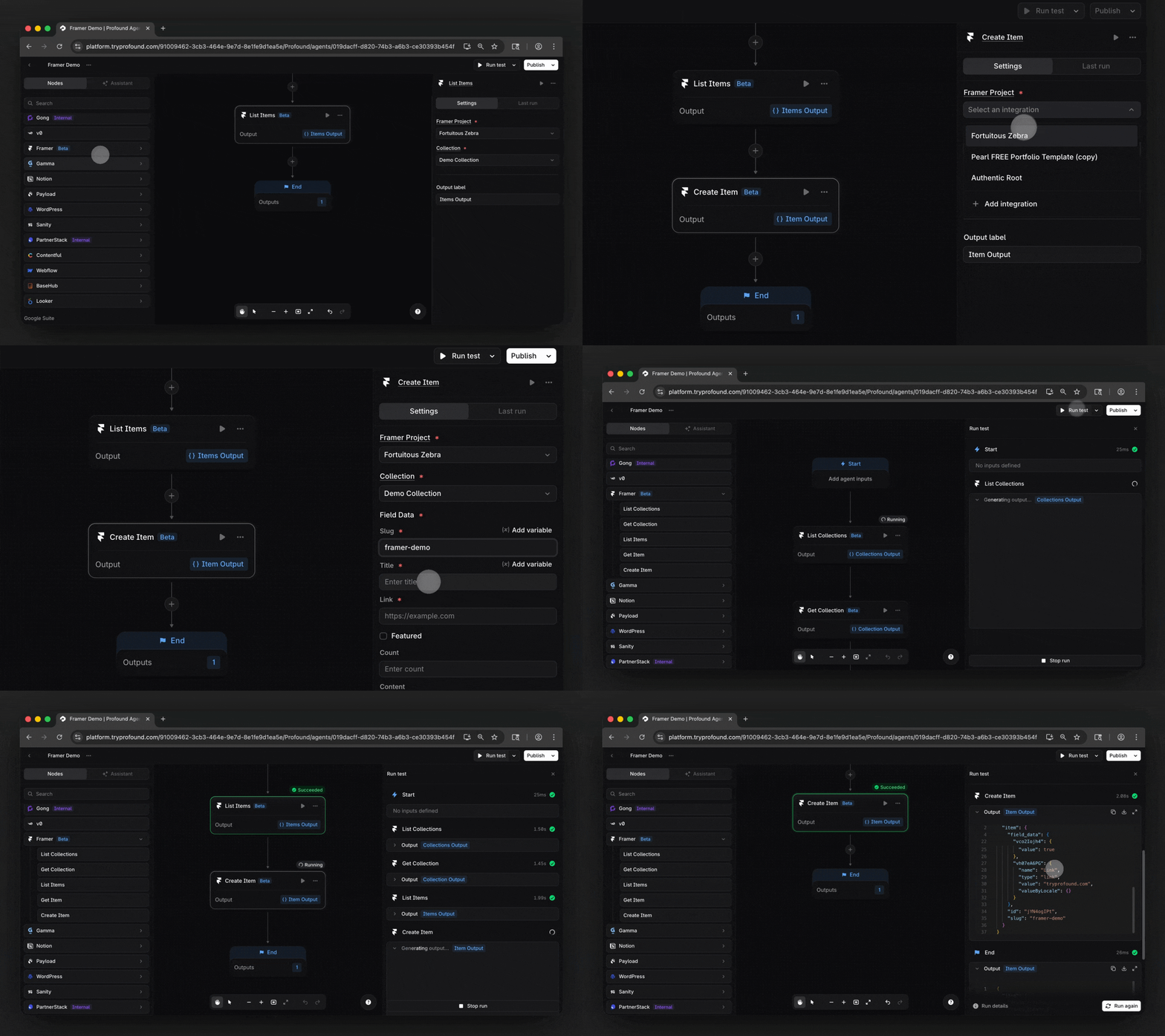
List Collections
The List Collections node returns every CMS collection in a given Framer project. Use it when you want an Agent to discover what's available in a project before acting on it, or when you're building workflows that need to route content to the right collection dynamically based on topic, category, or campaign.
Get Collection
The Get Collection node returns the details for a single collection, including its schema and configuration. This is useful when an Agent needs to understand the structure of a collection (what fields exist, which are required) before it tries to create items inside it.
List Items
The List Items node returns all items inside a specific collection. This is the read node most teams will reach for first. Pull your existing blog posts, FAQ entries, or landing pages into an Agent, and pass them downstream for auditing, enrichment, or gap analysis against your Profound data.
Get Item
The Get Item node returns a single item from a collection by ID. Use it when you need to inspect or operate on a specific piece of content, such as updating an individual post based on new AEO insights or pulling the full content of one page into a downstream analysis step.
Create Item
The Create Item node creates a new item inside a Framer collection. The node respects the full field schema of your collection, including required fields, slugs, rich text content, links, and custom fields. The output of any upstream node can be mapped dynamically into these fields, which means an LLM node drafting a page can hand its output directly to Framer without a manual copy-paste step.\
This is the node that closes the loop. Profound identifies the opportunity, upstream nodes draft the content, and Create Item publishes it as a live CMS entry ready for review inside Framer.
How Profound customers can use this
FAQ pages generated from prompt gaps
Build an Agent that pulls high-volume prompts from Profound where your brand has low visibility, uses an LLM node to draft FAQ-style answers, and creates new items in your FAQ collection via the Create Item node. What used to be a recurring manual workflow becomes a scheduled pipeline that keeps your site responsive to real AI Search demand.
Content audits against live CMS
Pair the List Items node with your Profound data to audit every live page on your site against current AEO performance using Profound Sheets. Flag pages that aren't getting cited, identify topics where your content exists but isn't surfacing in Answer Engines, and route the results into a prioritized rework queue.
Competitive content response
When Profound surfaces a topic where competitors are being cited and you aren't, chain a Google Search node to pull SERP context, an LLM node to draft a response page, and a Create Item node to stage it in Framer. The entire cycle from signal to staged page runs inside a single Agent.
Programmatic landing pages at scale
For teams running programmatic AEO strategies, the Create Item node turns Framer into a publishing endpoint. Feed a list of target topics or locations into an Agent, generate a page per entry with your LLM node of choice, and let the Create Item node handle the publishing.
Get started
The Framer integration nodes are available today for all customers of Profound. Prospective customers are encouraged to get a demo to see them in action.
For setup instructions, check out our Framer connection guide and learn more about this integration and others via our Integrations Center, where we also encourage you to suggest the top integrations you would like to see next.


