

Generating the right image for a piece of marketing requires context. It needs to know what you're arguing, who the piece is for, and the look you want.
Typically, the image is made separately from the research and copy, so you have to explain everything again. Your designer knows the brand but needs a brief and has a queue of other requests. A standalone image tool has no queue but knows nothing about what you wrote, so you paste in a summary and get something generic back.
When working with your AI Marketer, the image is created in the same conversation as the research and copy, so you don't have to explain it again. For example, you and your AI Marketer have just written a launch post for your new spring running shoe. You type "Make a header image," and your AI Marketer already has the conversation to work from, along with what your Context Manager knows about your company and products. To match a particular look, attach reference images or ask it to pull them from your Knowledge Base.
How it works
Ask your AI Marketer
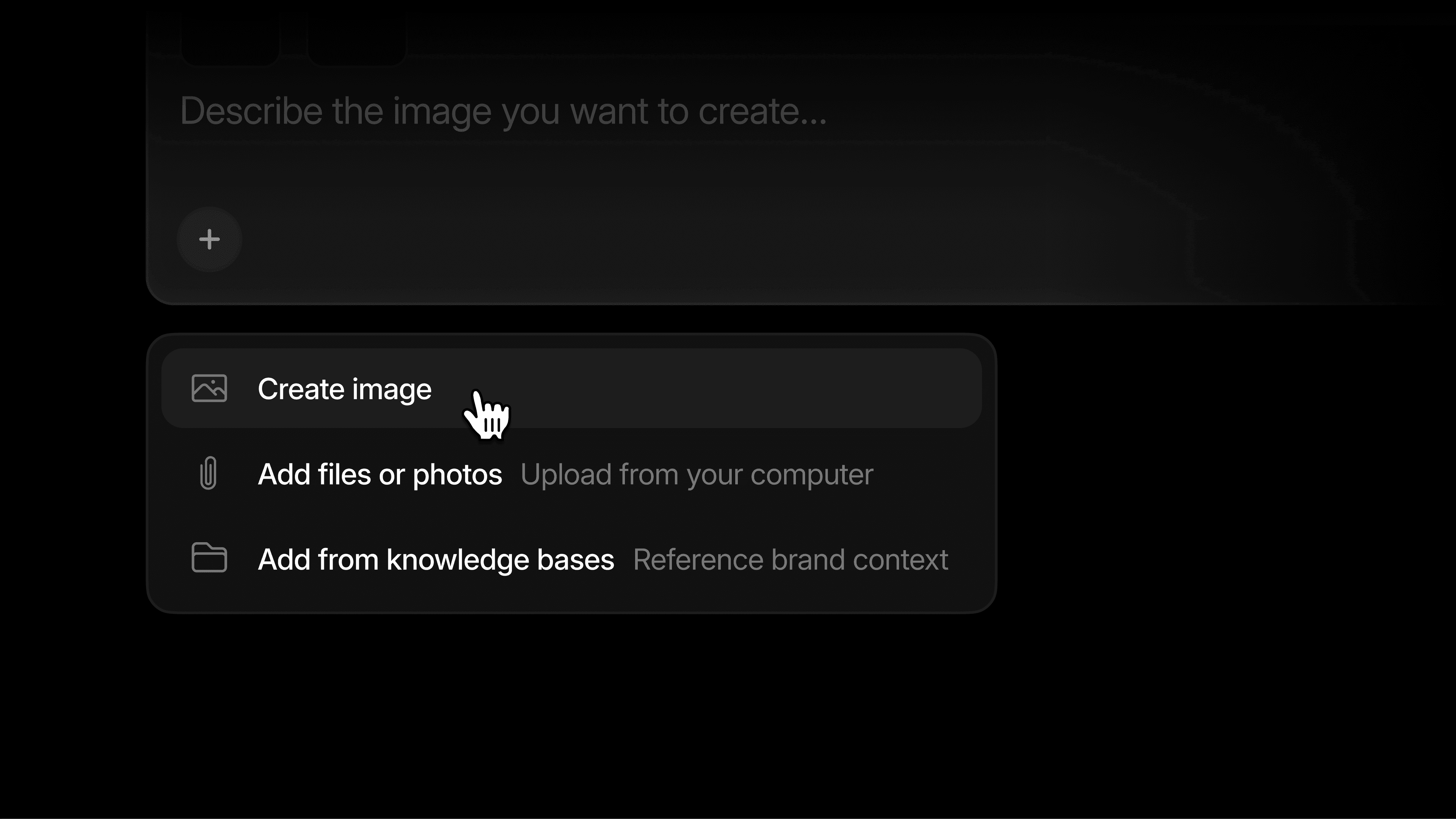
Click '+' in the composer and choose Create image, or simply ask for an image. Your AI Marketer infers the settings from your request, so mention any that matter.
You can ask for an aspect ratio, such as square (1:1), vertical (4:5 or 9:16), or wide (16:9 or 3:1), and a style, such as photorealistic, flat illustration, or 3D render. You can also ask for a transparent background for icons and spot illustrations, set the quality to control detail, and generate up to four images at once.
It follows your reference images
Reference images show your AI Marketer visual details that are hard to describe in a prompt, such as a product shot, a past campaign, or your illustration style. Attach up to three per request from your computer or your Knowledge Base. References that look similar to one another work best, because references that differ get blended.
By default, it follows your references closely. If you'd rather it treat them as loose inspiration, say so in your request.
You choose the one that fits
Your images open in a panel beside the chat, where you can download the one you want. For changes, ask in the chat. Each revision is a new image, so layout and text can shift between versions.
What to make with it
Your AI Marketer handles everyday images like concepts, variants, and visuals for blog posts and social, which leaves your designers free for hero work. Since Context Manager and your conversation with Aim already hold the details required, each image prompt can fit on one line.
Concepts from existing assets. "Pull our product shots from the Knowledge Base and give me four concepts for the October launch."
An image for a finished draft. "Make a header image for this post in flat illustration."
Versions for each audience or offer. "Now make a version of that image for small business owners."
Get started
Image generation is available with your AI Marketer today. If you're not yet a Profound customer, get a demo to see image generation in action. You can check out our other product updates on our blog.


